Menu guide
Dashboard
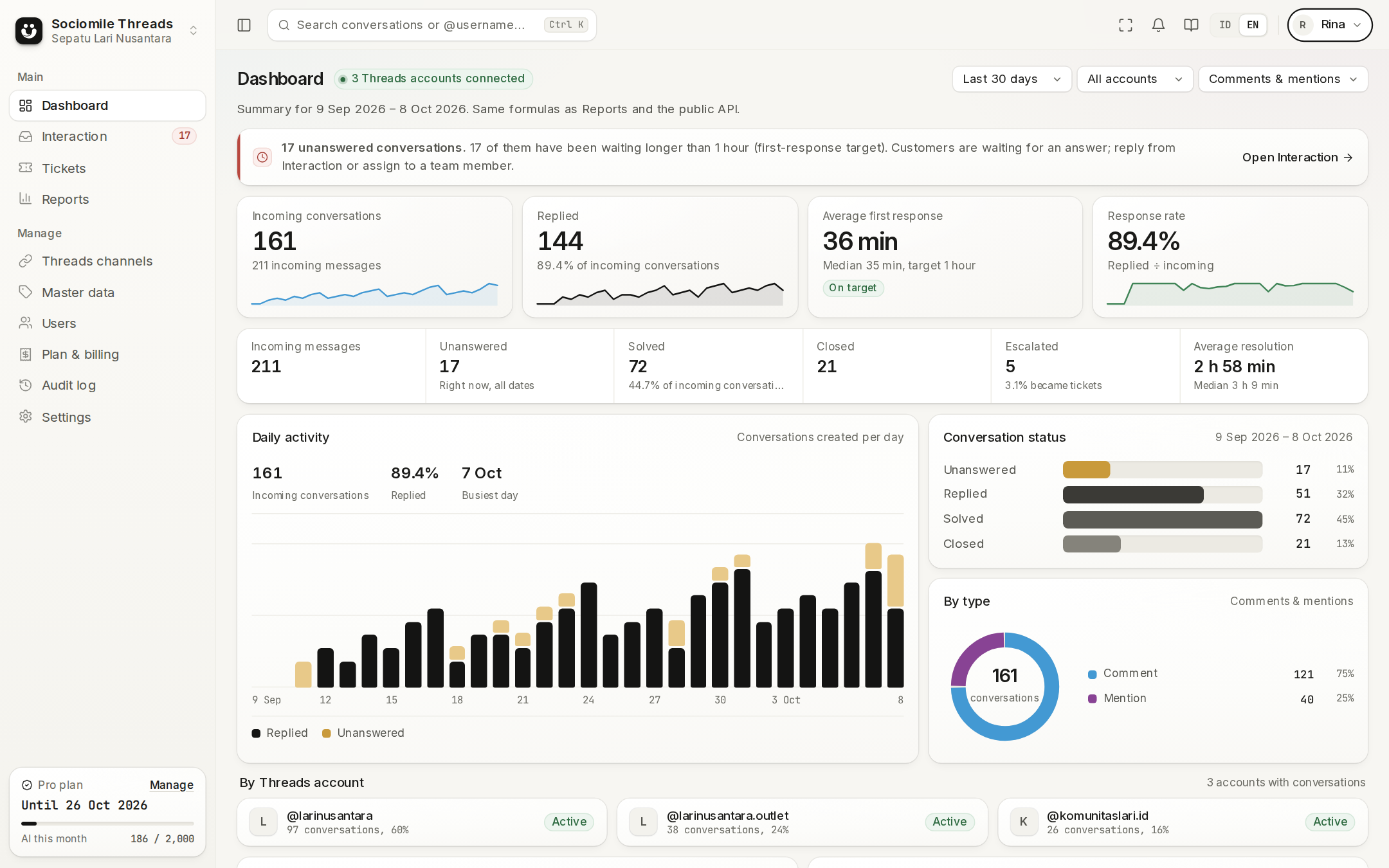
A summary for the selected period and accounts: incoming conversations, incoming messages, replied, unanswered (the current queue), solved, closed, escalated, average first response time, average resolution time, and response rate. Below that are the daily trend, breakdowns by account/type/category/tag, and a ticket summary. The banner at the top counts unanswered conversations, including those past the first-response target, and the first-response card shows whether the average meets the target. Every number is defined in Report formulas.
Interaction
One inbox for all comments and mentions from the Threads accounts you can access.
- Filter column (far left): Threads account, status (All, Unanswered, Replied, Solved, Closed) with counts, assignment (Anyone, Me, Unassigned, or a specific member), type, category, label, tag, and last activity date. On narrow screens, open this column with the filter button.
- Conversation list: search by text or @username, with the newest conversations on top. Move with the arrow keys ↑ ↓ and open with Enter. The list refreshes automatically every 5 seconds.
- Conversation: a quote of the original post, incoming/outgoing messages, and activity (status changes, assignments, escalations, ticket feedback). The composer accepts text, image attachments (JPG/PNG, max 8 MB) and videos (MP4/MOV, max 100 MB); multiple files are sent as a carousel (max 10 files). You can also paste images straight from the clipboard.
- Quick replies: templates from Master data. The variable
{{username}}is replaced with the customer's @username, and{{nama_agen}}with your name. - Details panel (right): the contact's profile at the top, then four tabs: Details (assignee, category, labels, tags, and conversation info such as first response time and who handled it), Notes (internal notes and feedback from tickets), History (other conversations with this contact and related tickets), and AI (conversation summary).
- Unanswered conversations waiting longer than the first-response target (Settings → General) are marked Overdue, with their time shown in red.
- Summarize and Draft reply (Pro plan) use AI. Drafts always go into the composer for you to edit; they're never sent automatically.
Conversation statuses: Unanswered → Replied (automatically when a reply is published) → Solved / Closed (manually). If the customer sends a new message, the conversation automatically reopens as Unanswered.
Tickets
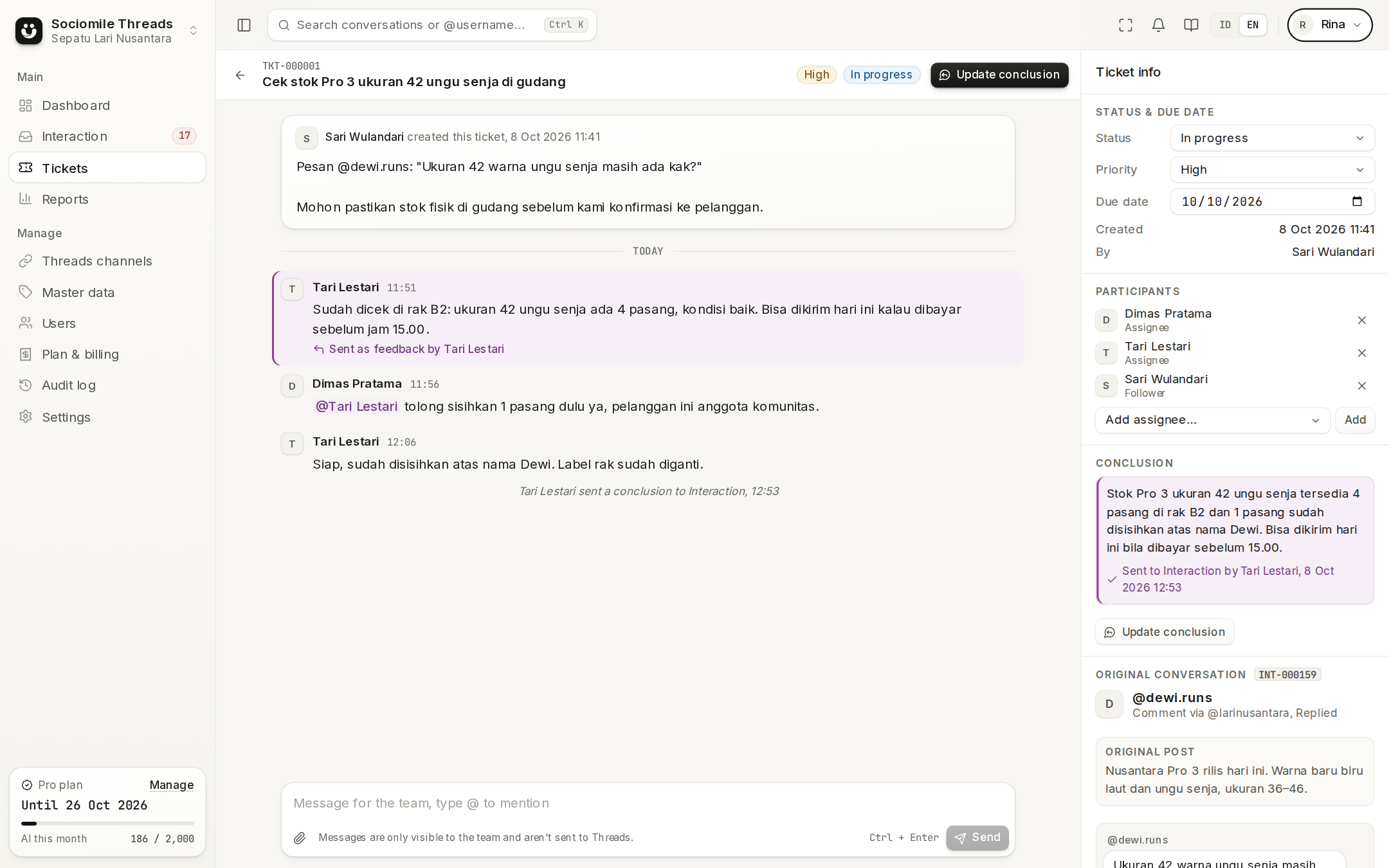
Use a ticket when a conversation needs help from another team (warehouse, finance, tech support).
- From a conversation, click Escalate: enter a title, description, priority, assignee (one or more), and a due date if there is one.
- The ticket page is a discussion space: all participants chat, attach files, and mention members with
@name(which triggers a notification and an email). - Click Send as feedback on a discussion message to send it to the original conversation. Agents in Interaction see it under Notes and can click Use as draft.
- Ticket statuses: Open → In progress → Waiting → Resolved → Closed, and a ticket can be reopened. When it's Resolved, whoever handles the conversation is notified.
Reports
- Summary: key numbers with breakdowns by day/week/month, account, type, category, tag, and status.
- Raw Data: one row per conversation or per message.
- Productivity: per member (replies, solved/closed, first response time, handling time, tickets, active days).
All reports can be filtered and downloaded as CSV (requires Export CSV access, up to 100,000 rows per file).
Manage
The Manage group in the sidebar holds workspace administration. The menus shown depend on your role's access. In every table, the action buttons are icons at the right end of the row (hover to see their names).
- Threads channels: connect, sync, and disconnect accounts.
- Master data: categories, colored labels, tags, and quick replies, each with the number of conversations using it.
- Users: the Members tab (invite, change role & Threads account access, deactivate, and invitation email status: Sent, Queued, or Failed) and the Roles tab (create roles and tick their menu/action access, details).
- Plan & billing: see the section below.
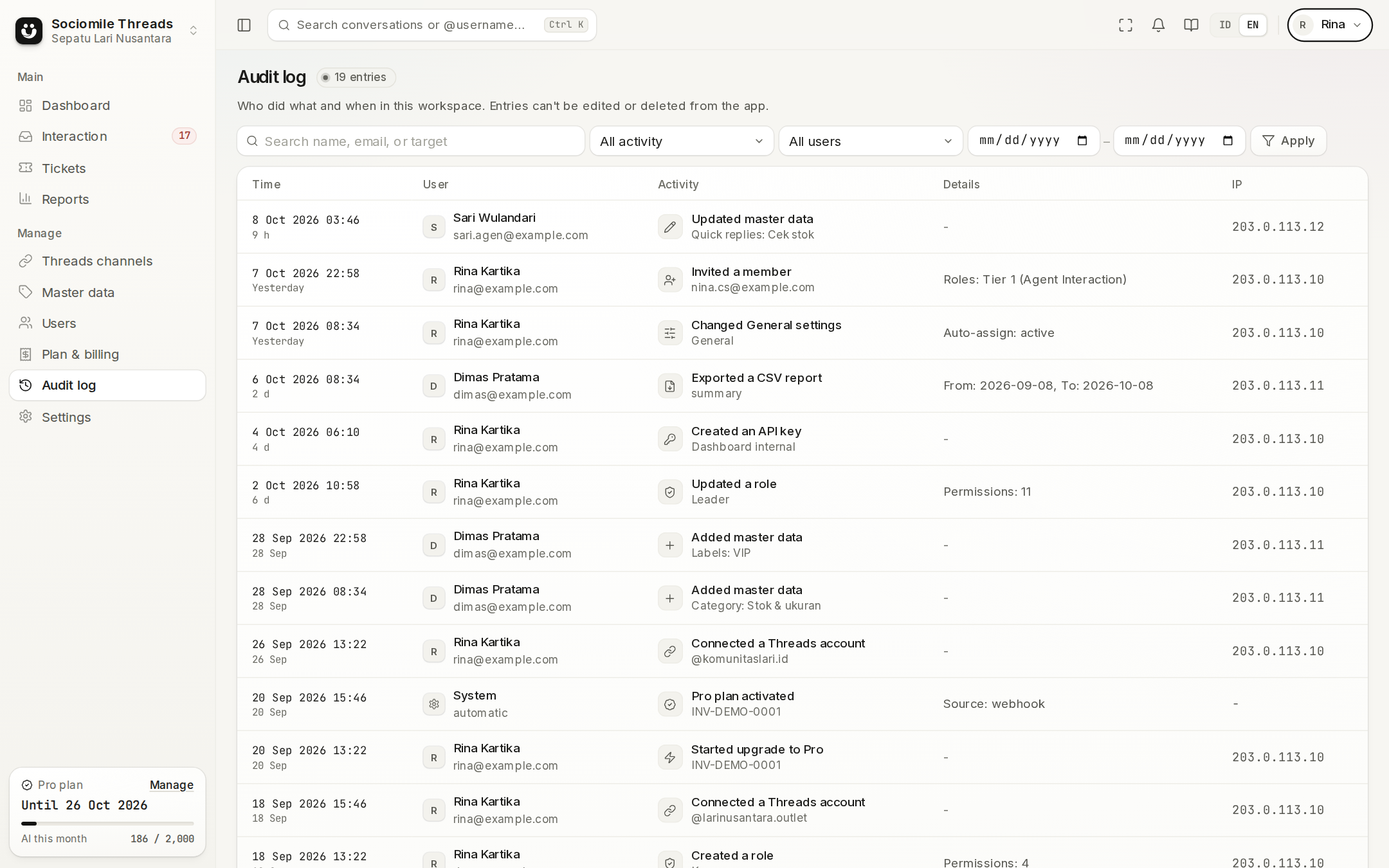
- Audit log: a record of who did what and when, such as inviting members, changing roles, connecting Threads accounts, and changes to master data, billing, API keys, and settings. Filter by activity, user, and date; entries can't be edited or deleted.
- Settings: tabs General, Workspace (workspace name), AI (brand voice for Draft reply and this month's usage, Pro), and API (API keys for integrations, Pro, API documentation).
Settings → General
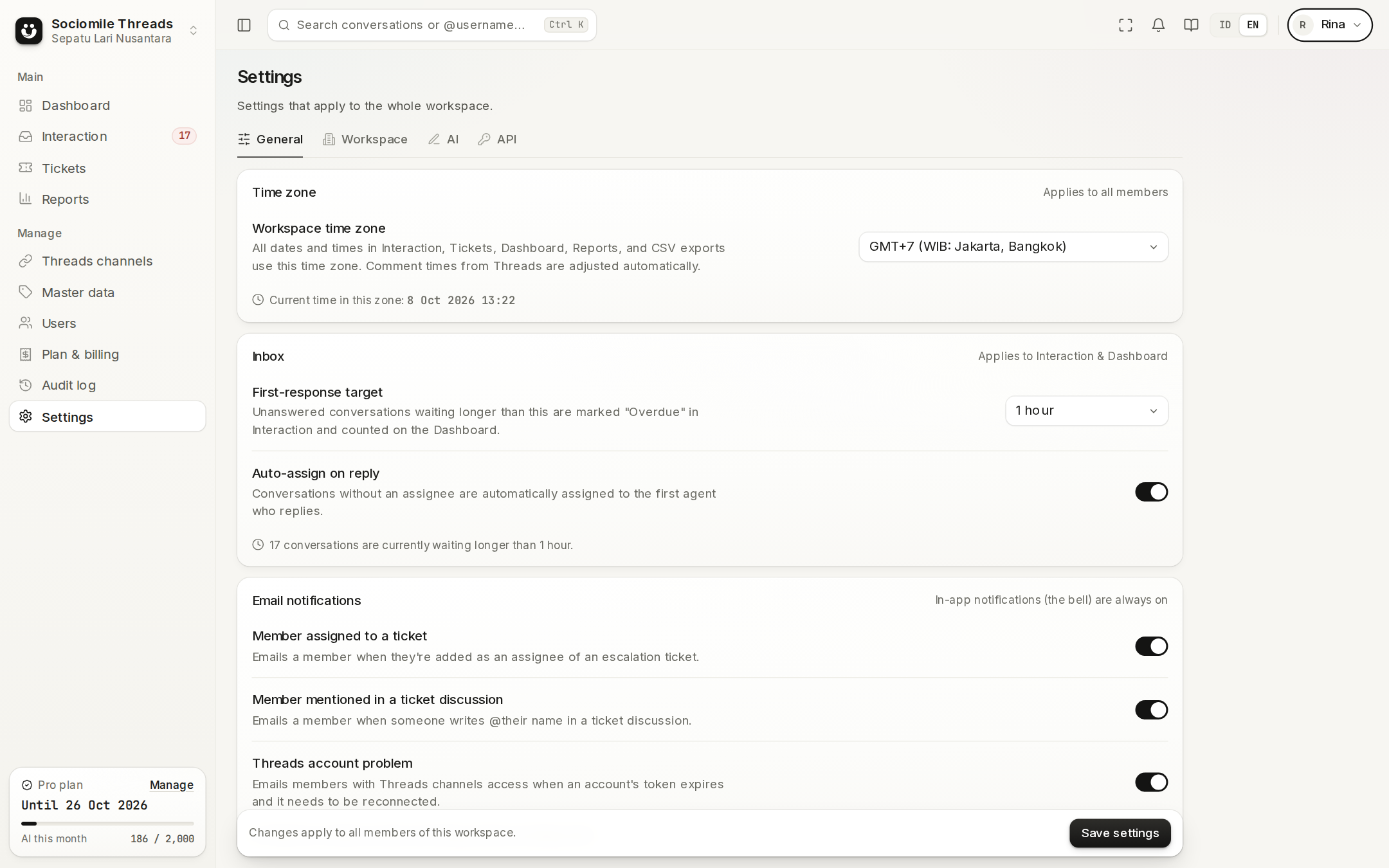
Applies to the whole workspace and can only be changed by members with General settings & workspace profile access.
- First-response target (no target, or 15 minutes to 24 hours): Unanswered conversations that wait longer are marked Overdue in Interaction, and their count appears in the Dashboard banner.
- Auto-assign on reply: conversations without an assignee are automatically assigned to the agent who replies to them first.
- Email notifications: turn emails on or off for when a member is assigned to a ticket, mentioned in a ticket discussion, or when a Threads account has a problem. In-app bell notifications stay on; invitation and billing emails are always sent.
- System: a summary of settings managed by the service operator (time zone, reply limits, attachment limits, and data retention).
Plan & billing
Upgrade to Pro, pay monthly invoices, view your invoice history, and fill in your billing profile. Only the Owner (or a role with Plan & billing access) sees this menu. See Plan & billing for details.
My account
From the profile menu (top right): see your role and access in the active workspace, switch workspaces, or leave a workspace owned by someone else.