Getting started
1. Sign in and create a workspace
- Open the sign-in page and choose Sign in with Google. There's no separate password; your Google account is your identity.
- The first time you sign in, enter a workspace name (usually your business or brand name). The new workspace starts on the Free plan and you become its Owner.
- A Google account can own only one workspace, but it can be a member of other workspaces. Switch workspaces with the picker at the top left.
2. Connect a Threads account
- Open Threads channels (Manage group in the sidebar) and click Add Threads account.
- Sign in to Threads with the business account you want to manage, then approve the requested permissions (reading and replying to comments and mentions).
- When you're back, the account shows the status Active. Comments on that account's posts and mentions of that account start arriving in Interaction.
Threads accounts you can connect: 1 on the Free plan, up to 4 on Pro. A Threads account can be connected to only one workspace.
Until the Meta app passes App Review, comments are fetched by an automatic sync every 5 minutes. You can also click Sync on the Threads channels page.
3. Invite your team
- Open Users → Members, enter the member's Google email, choose a role, and (optionally) limit them to specific Threads accounts. The Invitation email column shows whether the email has been sent.
- The member receives an invitation email that's valid for 7 days. They must sign in with the Google account whose email matches the invitation.
- Default roles: Leader (all conversations, tickets, reports), Tier 1 (replies in Interaction), Tier 2 (handles assigned tickets). See Roles & permissions.
Member quota (excluding the Owner): 1 on Free, 10 on Pro. Pending invitations count toward the quota.
4. Reply to your first conversation
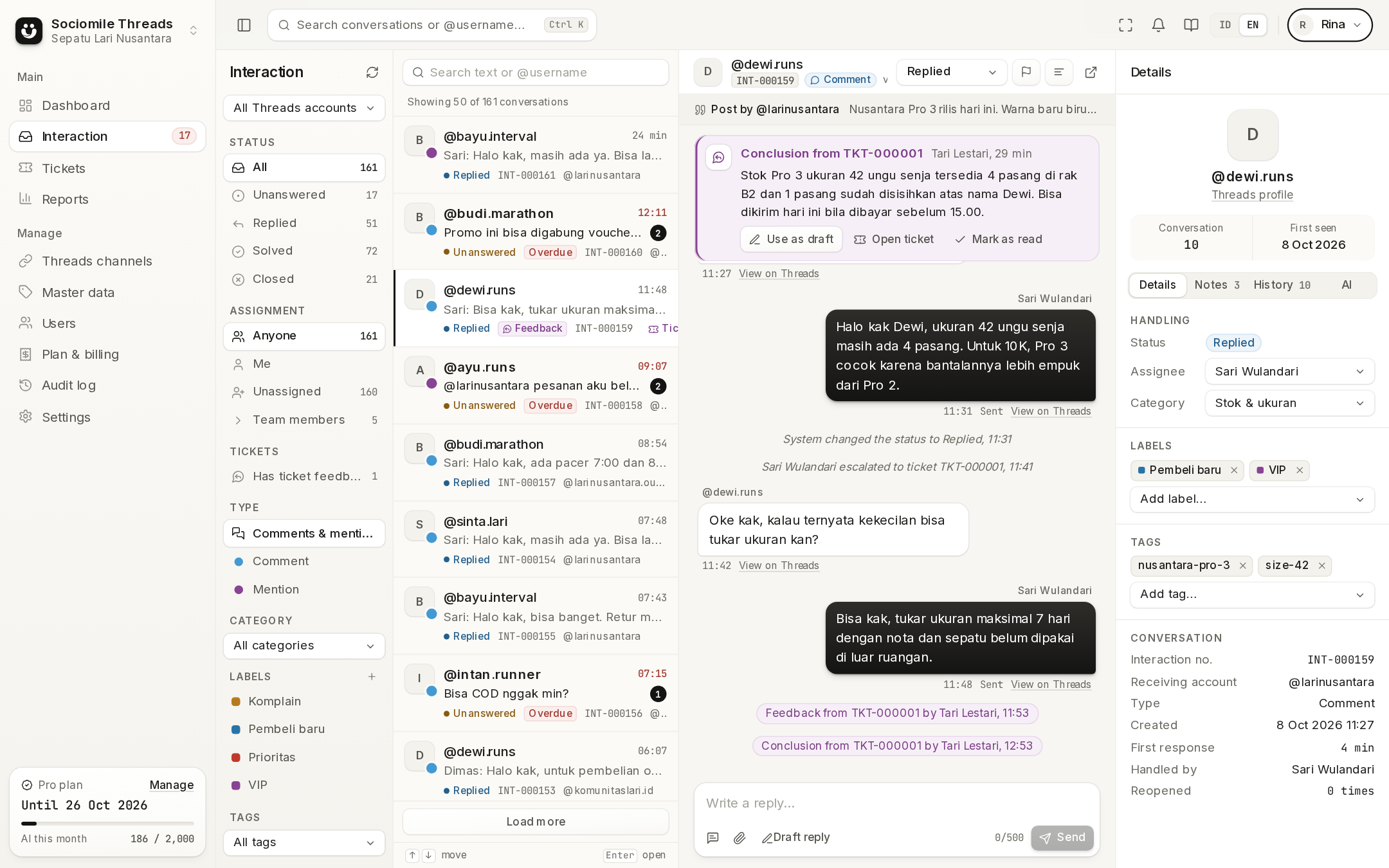
- Open Interaction. The leftmost column holds the filters (status, assignment, type, label); next to it is the list of latest conversations. Select one to open it.
- Write a reply (up to 500 characters), attach images/videos if needed, then click Send. Its status changes from Processing to Sent once it's published on Threads.
- The conversation automatically becomes Replied. Mark it Solved when the matter is settled, or Escalate it to another team with a ticket.